Figma Dev Mode and Code Connect are Figma's answer to "how do developers get from design to code?". They help with that question. They don't answer a different one: does the code that shipped still match the design? This note separates the two, with what each feature does according to Figma's own documentation, and where the gap stays open.
Key takeaways
- Dev Mode is the developer view of a Figma file, available on all paid plans with a Full or Dev seat (Figma Help Center).
- Code Connect shows your real component code in Dev Mode instead of generated snippets; it needs an Organization or Enterprise plan (Figma Help Center).
- Both work at handoff time, from design towards code. Neither documents a check of what's in production.
- Keep them for handoff, and add a check that compares the shipped code with the design system.
What Dev Mode solves
Figma describes Dev Mode as giving developers "everything you need to navigate design files and transform designs into code" (Guide to Dev Mode). The same guide lists what developers do there: inspect designs, compare frame versions, review designs marked ready for development, explore component variants without editing the file, and link designs to tickets, docs and code components.
It's available on all paid plans, and it needs a Full or Dev seat. It's the default developer view in Figma.
What Code Connect adds
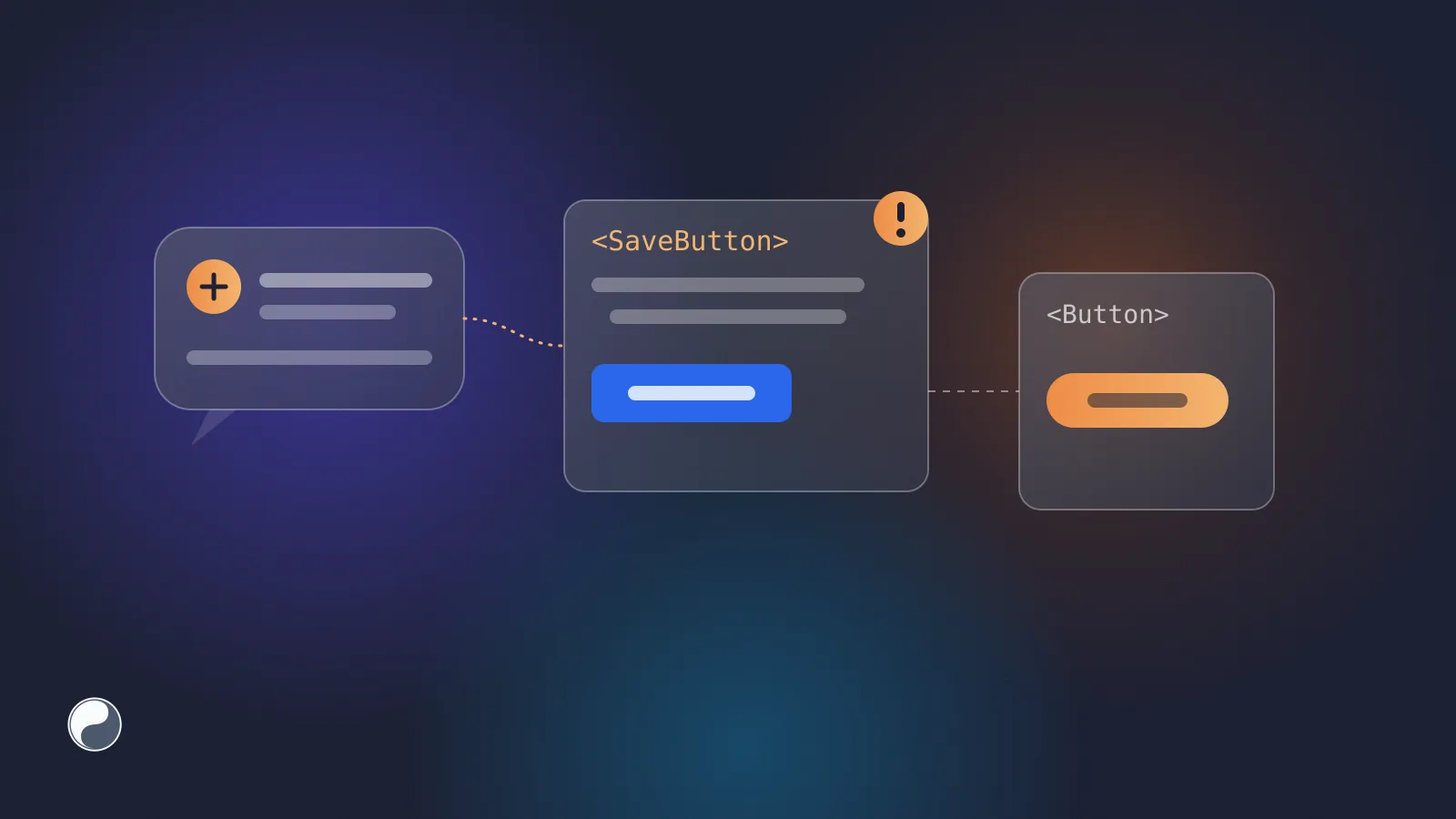
Out of the box, Dev Mode shows code Figma generates from the layer. With Code Connect, it "will display true-to-production code snippets from your design system instead of autogenerated code examples" (GitHub). Figma describes it as "a bridge between your codebase and Figma's Dev Mode, connecting components in your repositories directly to components in your design files" (Code Connect). Select a button in Figma, and a developer sees <Button variant="primary"> from your library, not a stack of CSS.
A few facts that shape adoption:
That last row matters if you set Code Connect up a while ago: the framework-specific parsers "will no longer receive updates or support", so older configurations are worth migrating to template files.
Code Connect also feeds Figma's MCP server, which lets AI agents read designs. The remote server at https://mcp.figma.com/mcp is available on all seats and plans, and the MCP guide pairs it with Code Connect: "Boost output quality by reusing your actual components" (Figma MCP server).
What they solve, side by side
The first three rows are handoff: design flows towards code. The last three are about production, and none of Figma's pages for these features claim to check it.
Where the gap stays open
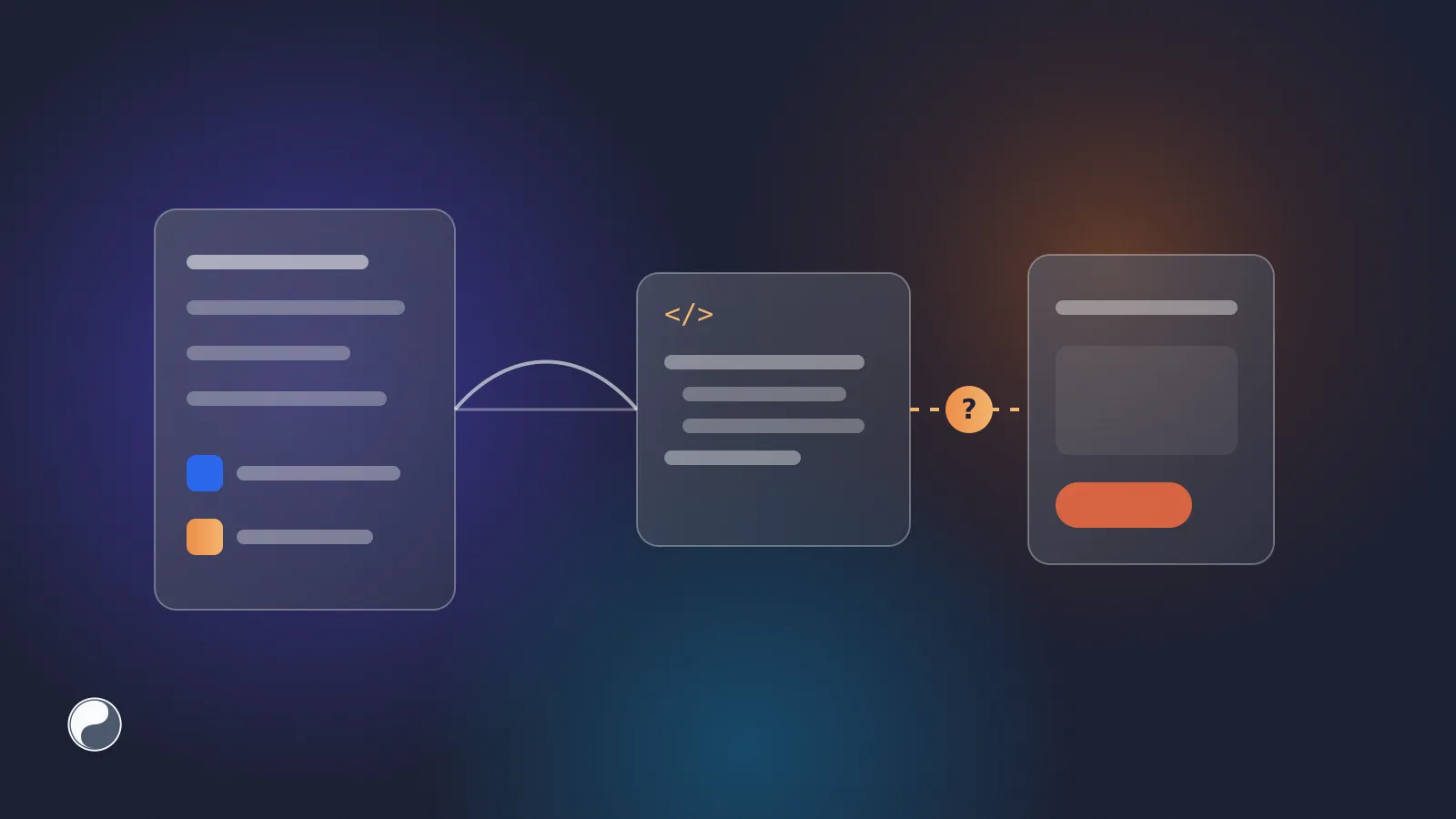
Code Connect documents what the right code is. It doesn't see what the code became.
- The mapping is a promise, not a check. A Code Connect entry says "this Figma button is
<Button>". A developer can still ship a localSaveButtonwith a hex colour, and nothing in Figma will know. - Tokens drift separately. A variable changes in Figma; the token in code keeps the old value until someone exports it. Dev Mode shows the new value, and production keeps the old one. That's design system drift in its simplest form.
- AI agents widen the gap. An agent reading a design through MCP can reuse your components when the mapping is there. Nothing verifies what it actually wrote, which is why your AI agent does not know your design system until something checks the result.
How to use them together
- Use Dev Mode for inspection. It's on every paid plan.
- Add Code Connect for your core components, if you're on Organization or Enterprise. Start with a handful of components developers look up most, using template files.
- Check production separately. Compare token values in code with Figma, and search the code for bypasses such as hard-coded colours and rebuilt components. Run it on every pull request so drift shows up while it's small.
Where FISYCO fits
We build FISYCO for step 3. It compares your Figma libraries with the code in your repository, reports divergences and bypasses of tokens and components, and delivers token and asset changes as pull requests. It sits next to Dev Mode and Code Connect rather than replacing them: they tell developers what to build, and FISYCO shows whether what shipped still matches.
Figma documentation cited as retrieved on 30 September 2026.